# Accessing the IMIS
# Opening the app/ Login
#####
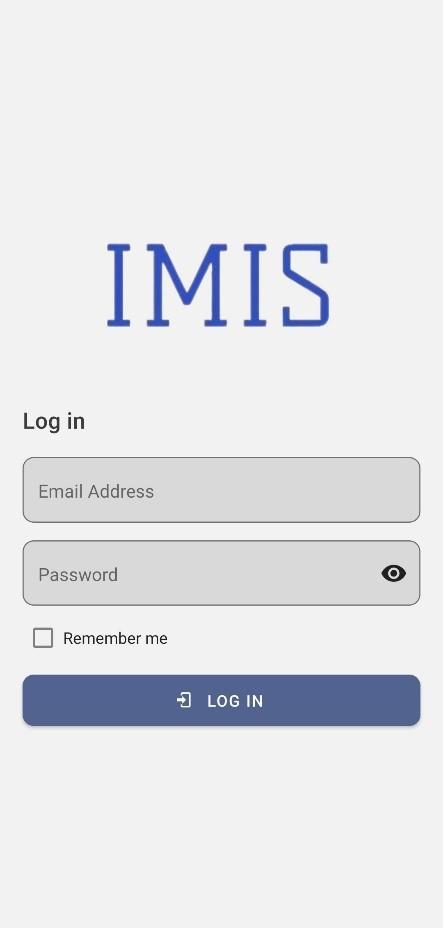
- On opening the app for the first time, the user is asked for their login credentials.
- Enter email address and password in textbox.
- Click on ***'LOG IN'*** button.
[](http://152.42.244.158/knowledge-product/uploads/images/gallery/2024-05/1.jpg)
*Figure 3-1 Login*
**Overview:**
- This login credential is created and provided by the Municipality Admin to the Engineering and Building Permit Department.
- The application retains the login information until the user's session becomes inactive and expires.
- It is to be noted that GPS needs to be turned on while using the mobile application. When the user is using the app for the first time, the user must provide the location permission to the app.
- Once successful login, the user is redirect to the Dashboard screen